For customers
Download your template as a PDF
Choose PDF print settings and download the pages you need.
Create the PDF
- Open your template and save your changes.
- Select , then PDF. On a smaller screen, open the download icon first.
- Set and according to your printer’s requirements.
- Turn on only if you want multiple copies of a design arranged on a larger sheet. Choose the paper size shown.
- For a multi-page template, choose the pages you need. Use Custom and the From and To fields for a range.
- Select Download and wait for the file to finish preparing.
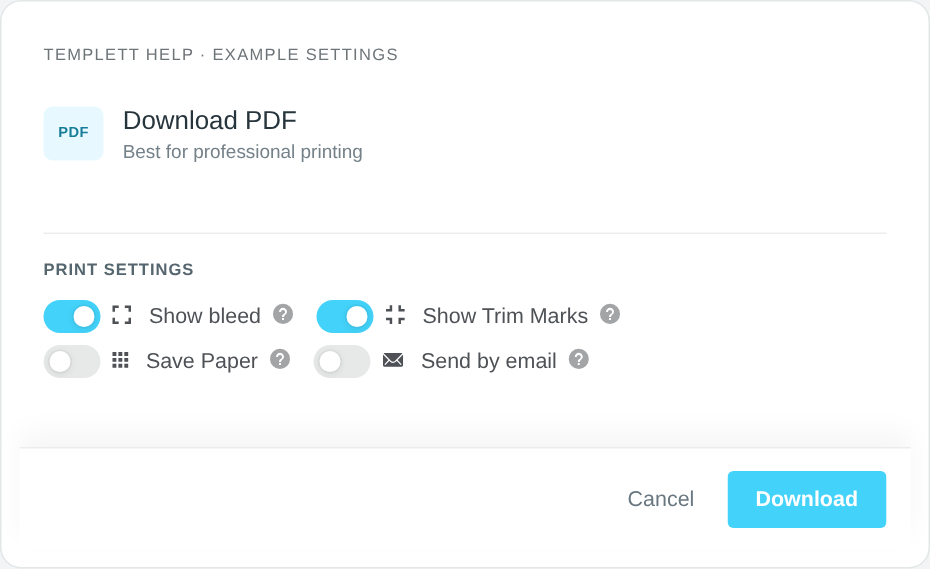
Example PDF settings. Match bleed and trim marks to your printer’s requirements. Select the image to view it full size.
Which settings should you use?
Use Bleed and trim marks to understand those options. For a home-printing layout, see Print multiple invitations on one sheet.
A print service may want one design per page without trim marks. Check with that service before exporting.
Find and check the file
Open your browser’s downloads list or the download location you selected. Open the PDF and check all pages, wording, and images before printing.
If a download-limit message appears, see Reached your download limit?.