For customers
Edit text in your template
Replace wording and adjust the available text styles in your purchased design.
Change the wording
On desktop, click a text box once to select it, then double-click to edit the wording. Select the words you want to replace and type your own. Click outside the text when finished.
On a phone, tap the text to select it, then tap again to open the Edit text panel. Replace the wording and tap Done to apply it and return to the design. Dismissing the keyboard alone keeps your draft open; tap the field to continue typing. Use Save after checking the result. See Edit on a phone for the mobile workflow.
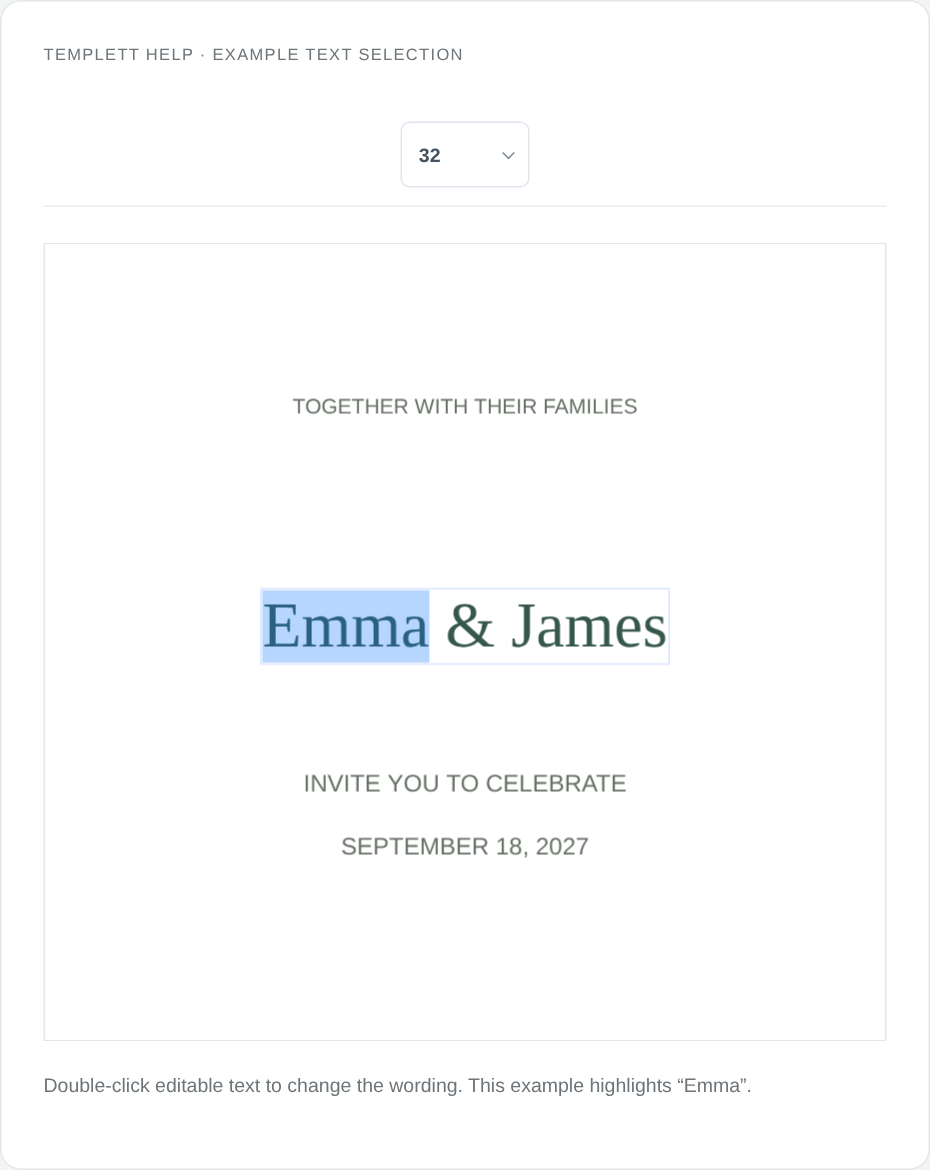
Example text selection and font-size control, shown in an isolated editor preview. Select the image to view it full size.
Change the appearance
Select the text box to see the available font, size, color, and alignment controls. To style part of the wording, enter text editing mode and highlight that portion before applying a supported style.
Longer names or additional lines may need a smaller font or adjusted layout. Check that the wording fits and remains readable.
If text will not change
Some lettering is part of an image, and some objects are locked by the seller. These cannot be edited like a normal text box. Ask the seller what can be customized if the expected controls do not appear.
Save your changes
Select after checking the text. See Save your template and return later before closing the editor.
More text tools
Use font, spacing, and arched-text controls for detailed styling, Glyph Panel for decorative characters, and arrangement tools to position the text. For touch controls, see Edit on a phone.