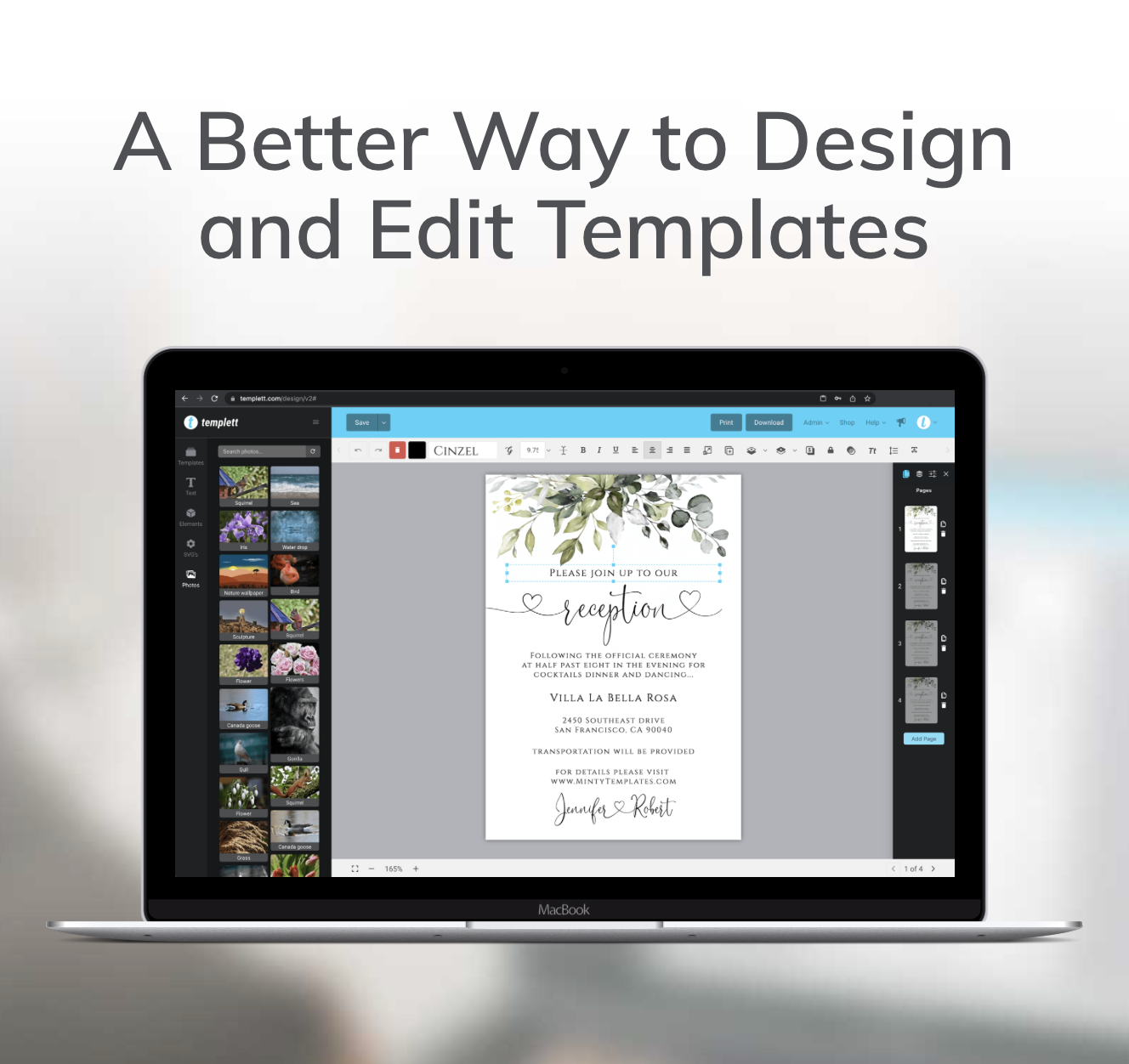
Fonts play a crucial role in bringing your designs to life. Whether you’re creating wedding invitations, business cards, or party decor, the right font can set the perfect tone. Luckily, Templett makes it easy to upload and manage fonts, giving you endless possibilities to customize your designs. If you’re new to the platform or just need a refresher, this guide is for you. Let’s dive in!
Why Upload Your Own Fonts?
While Templett comes with a robust library of over 800+ fonts, sometimes you need something unique—a font that aligns perfectly with your style of designing. By uploading your own fonts, you can:
- Ensure consistent branding.
- Match your design with pre-existing materials.
- Mix and match to create a unique, different style.
Getting Started: How to Upload Fonts in Templett
Uploading fonts in Templett is a straightforward process. Here’s how you can do it step by step:
- Start in The Design Area: Start by going into your Templett account and create a design as you would or open a design that you’ve already started.
- Add a textbox: When you add a textbox to your canvas, you can access your Fonts panel from the toolbar up top. Clicking on it will bring up a vast list of fonts that you have access to at your fingertips.
- Upload Your Font Files: Up top on the panel are three tabs that you can choose from: Upload Fonts, Manage Fonts, and Buy Fonts. Click on the Upload Fonts tab. From here, your computer will bring up a pop-up screen of the folders in your computer. Choose the font file that you want to upload and simply click “Open.”
*It’s best to use the following font file formats: .TTF, .OTF, and .WOFF.* - Access Your Font: After the upload is complete, your new font will be accessible as part of your font list! Easy as that. If somehow you forgot the name of it, click on Manage Fonts and you’ll see the font that you uploaded on there.
- Give It Awhirl: Play around with your new font! Use the design area as a testing ground for what you can create with the font that you just uploaded.
Managing Your Fonts
Once your fonts are uploaded, you can always toggle them on/off using the Manage Fonts tab. Here are a few tips:
- Remove Unused Fonts: If you’ve uploaded a font you no longer use, delete it to keep your library clutter-free.
- Test Before Using: Always test uploaded fonts in the design area to ensure they render correctly and fit your vision.
- Keep What You Want: Opening the Manage Fonts tab, you’ll see that there are three more tabs that you can access: My Fonts, Purchased Fonts, and Stock Fonts.
- My Fonts – in this tab you’ll be able to see all the fonts that you have uploaded with a toggle button on whether you want them activated or not.
- Purchased Fonts – did you know that you can purchase fonts in the Templett Shop? *insert hyperlink as part of text* Once you purchase a font in the shop, you can toggle them on/off right from this tab.
- Stock Fonts – here is where you have access to the over 800+ fonts that Templett has to offer, including premium ones that are being added in! Use this tab to toggle on/off the fonts that you use or don’t use!
Troubleshooting Font Uploads
Here are some common issues you might encounter and how to fix them:
- Unsupported File Format: Ensure you’re using a supported font file type (.TTF, .OTF, .WOFF).
- Font Not Showing Up: Try refreshing your browser or clearing your cache if the font doesn’t appear immediately.
- Licensing Issues: Double-check that you have the proper license for any fonts you upload, especially if you’re creating designs for commercial use.
Pro Tips for Using Fonts in Templett
- Combine Fonts Creatively: Pair a bold serif with a delicate script for eye-catching designs.
- Use Glyphs: Many fonts come with special characters or glyphs. Use them to add a design flair to your template.
- Stay Consistent: Stick to 2-3 fonts per design to maintain a clean and professional look. Using too many different fonts will create a “busy” look.
Uploading and managing fonts in Templett is a game-changer for anyone looking to personalize their designs. By following these simple steps, you’ll have a font library that’s as unique as your creativity. So, what are you waiting for? Start uploading and designing today!
Have questions or tips of your own? Share them in the comments below—we’d love to hear from you!
Happy designing!