For customers
Download your template as a PNG
Export PNG images and choose the available quality setting.
Create the PNG
- Save your changes and select , then PNG.
- Choose the available setting: 96 dpi (web) or 300 dpi (print).
- Select the pages you need and choose Download.
Multiple selected pages download as separate PNG files in a ZIP. Extract the files before using them.
Some specialized template types, such as geofilters, have restricted download options. Use the options available for that template.
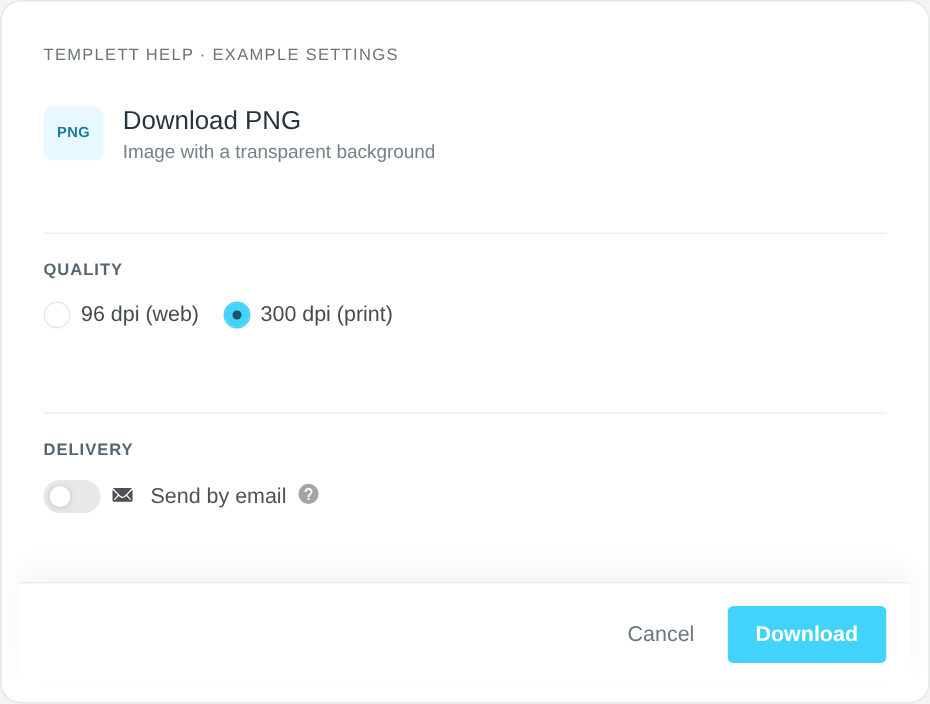
Example PNG settings. The available quality controls can depend on the template type. Select the image to view it full size.
Understand transparency
PNG can preserve transparent areas. It does not automatically remove artwork or a white shape that is part of the design. Check the exported image in the app or service where you plan to use it.
Printing a PNG
Confirm that the printer accepts PNG and that the exported size is appropriate. The PNG dialog does not offer the PDF bleed, trim-mark, or Save Paper controls. Choose PDF or JPG when those formats better match the printer’s requirements.